How to Keep a Digital Travel Journal: Photos, Notes and Favourite Places
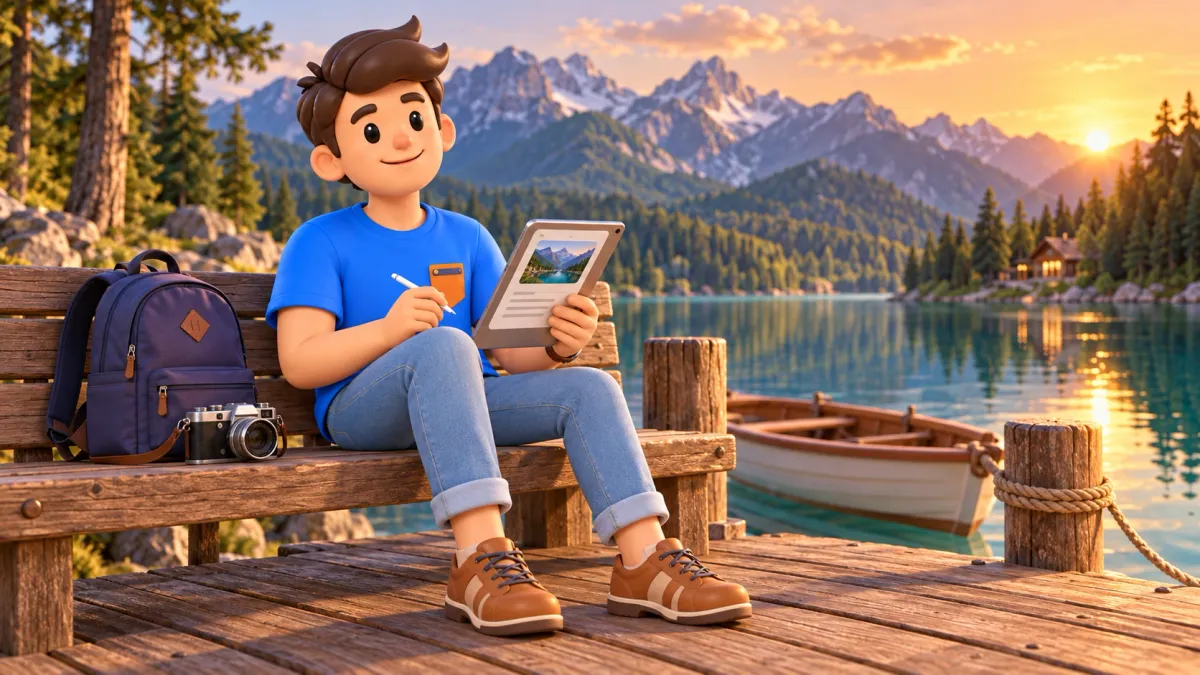
Choose a home for your entries, connect selected photos with a date and a short memory, and save favourite places under recognisable names. Before travelling, check offline use and how to obtain a copy outside the app. During the trip, capture enough context to recall a moment; a polished layout can wait.
Your journal might be a private archive, a story for family or the starting point for a photo book. You do not need a long daily report for any of those purposes. The aim is to keep memories easy to find and preserve them independently of one phone.
Give each part of the journal a clear home
Start with a tool you already understand: a notes app, a document or a dedicated journal. You do not have to move every original photograph into it. Photos can remain in a separate library, with entries identifying the selected image or collection.
Use a simple structure: one trip folder, section or journal, with dated entries inside. Keep places in one list or map. If text and photographs live in different services, matching labels should connect them.
For favourite places, you can use RoadMe to add stops to your favourites on a personal map. You can revisit that selection when planning another trip.
A map finds the location, a photo library holds the original image, and a journal explains why the moment mattered.
Choose a format you will actually use
| Format | Useful when | Check before leaving |
|---|---|---|
| Notes with photos | You want quick entries on a phone | Photo attachments, search, offline use and export |
| A single document | You prefer a connected day-by-day story | Mobile editing and access to attachments |
| A dedicated journal | You want dates, entries and media together | Plan limits, export, attachment sizes and offline access |
| A captioned photo album | Images are the main material | Where captions are stored and whether they export with the photos |
This compares formats rather than ranking applications. Features depend on the service, platform, version and subscription.
Create a sample entry containing text and an image. Close the app, disconnect from the internet and reopen it. If you intend to write offline, also test a new entry and saved edits. Separately, try obtaining a copy outside the application.
Use a small, reusable entry template
Keep only the fields you expect to fill in:
- Date and place.
- Selected photograph or clearly named collection.
- What happened.
- What you want to remember.
- Whether you would return, and why.
Add companions, food, a small expense or a phrase you heard if it matters to your story. Keep passports, tickets with codes and booking confirmations separately from a journal you may show to others.
Do not depend entirely on automatic location tagging. Write down a place name when it matters. “Near the bridge” may be difficult to interpret later; include the city, bridge name or a saved map point.
Add the context a photograph cannot show
A picture records a street or café table, but not necessarily why you stayed. Add a sound, an unexpected encounter, a change of mood or the reason you took another route.
If typing is awkward, use a short voice note in a tool that supports it. Label it later with the relevant day and place. Do not assume automatic transcription is available without checking.
Choose a convenient time to add a little detail: after returning to your accommodation, during a quiet break or the next morning. You can reconstruct a missed day later and mark the entry accordingly. Journalling should leave room to experience the trip.
An illustrative entry
This fictional entry demonstrates the structure; it is not an account of the author’s travels.
Date: 14 May, the second day of the trip.
Place: a small square beside the old market; saved on the map.
Photo: the image of green shutters in “Day 02 — market”.
Moment: turned off the main street and stopped by a bakery.
Remember: church bells and warm bread; the first time we stopped rushing.
Return: yes, for a walk through the nearby lanes. Check the bakery’s opening hours before another visit.
The final line separates a personal memory from practical information. An enjoyable experience remains part of the story, while hours and prices can change.
Select photographs that carry the story

Choose images with different jobs: a wide view recalls the setting, a detail recalls the event, and a portrait recalls the people. You do not need every similar shot in the entry.
Keep images connected to your experience even if they would not make a public highlights album. A sign, a meal or a view from a window may explain the day better than another panorama.
Caption selected images so they make sense without the surrounding text. If they stay in a separate album, use the same day or event label in the album and journal.
Selecting photographs for a story does not require deleting the rest immediately. Check that important material is preserved before clearing duplicates. For a significant edited photograph, keep an accessible original separately from the version prepared for sharing.
Check preservation separately from presentation
Seeing a photo in your gallery does not establish that its upload is complete. Google Photos provides both an overall backup status and a status for individual images. With Wi-Fi-only uploading selected, new photographs may wait for a connection.
Text, photographs and voice notes may be stored through different processes. Check each type of material. Photo backup does not establish that your journal entries are included.
| Action | Purpose | What to verify |
|---|---|---|
| Saving on the phone | Recording and reading on the move | The entry opens without internet |
| Syncing or uploading to a service | Access independently of this handset | Uploads are complete and the account is accessible |
| A separate copy or export | Preservation outside the working library | The copy opens and includes required attachments |
Synchronisation can carry deletions across devices. With iCloud Photos, deleting an image affects other devices using that library. Deleting through Google Photos can also affect the device and other devices with backup enabled. Another screen showing the same library is not an independent copy.
For important material, obtain a separate copy in storage you can access, or on another device outside the synchronised library. Open several files and inspect their quality. Do not test preservation by deleting originals.
Our guide to preparing your phone for travel covers the wider backup and access arrangements.
Make a separate version for sharing
A private entry can contain more detail than you want to show publicly. Prepare a separate selection for family or open access, keeping the original journal.
Review document photographs, ticket codes, accommodation addresses and information about other people. Agree with companions before publishing personal photographs. Check who can access a shared collection and whether its link can be passed on.
An image file may contain the coordinates where it was taken. In Photos on iPhone and iPad, for example, you can turn off location sharing when sending images through the share menu. Check other apps and publishing methods separately.
An address may still appear on a sign or in a caption even without location metadata. Review the visible image and text as well as the file settings.
Finish with an archive you can reopen
After returning, complete unfinished entries, check place names and choose a trip cover. Separate the main photo selection from working collections while keeping originals.
Save a readable copy of the text and the media you need. If the app offers export, check whether it includes photos, captions, dates and audio. A PDF can preserve a readable story, but does not replace original photographs for later editing.
Open the finished copy outside the application. Try finding a particular day, reading its entry and opening the selected photo. If this requires the original account, independent preservation still needs attention.
Favourite places can also inform a future trip. Distinguish the experiences you want to repeat from places you did not get to visit.
If you return to the city, you can build a new day-by-day plan in RoadMe around your dates, interests and pace. Review your saved places and choose which ones you want in this trip.
The journal is ready when an image connects to a clear entry, the place can be found and the material is available independently of your only phone. You can change the presentation later; the context is already there.